Clawcloud sets up an IPTV API with openlist
Benefits for lazy people::
On-demand and live streaming sources together (IPv4 and IPv6, old version TV box)
1 | |
1 | |
Separate on-demand and live sources (IPv4 and IPv6)
1 | |
1 | |
Note: This is suitable for people without NAS, OpenWrt, VPS, etc. If you have them, it is better to deploy locally for better results.
Setup Start Video linkyoutube
1.Log in to CLAW and choose a region, for example, Singapore
Open CLAW, log in to claw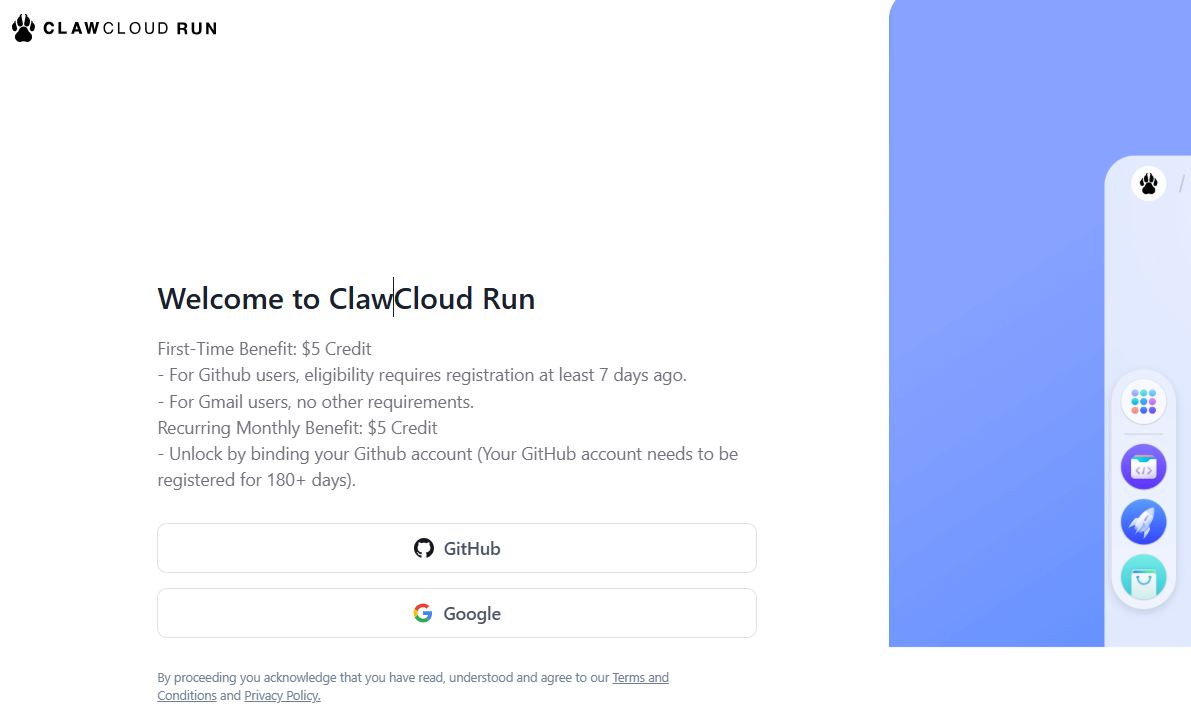
Choose a region, for example, Singapore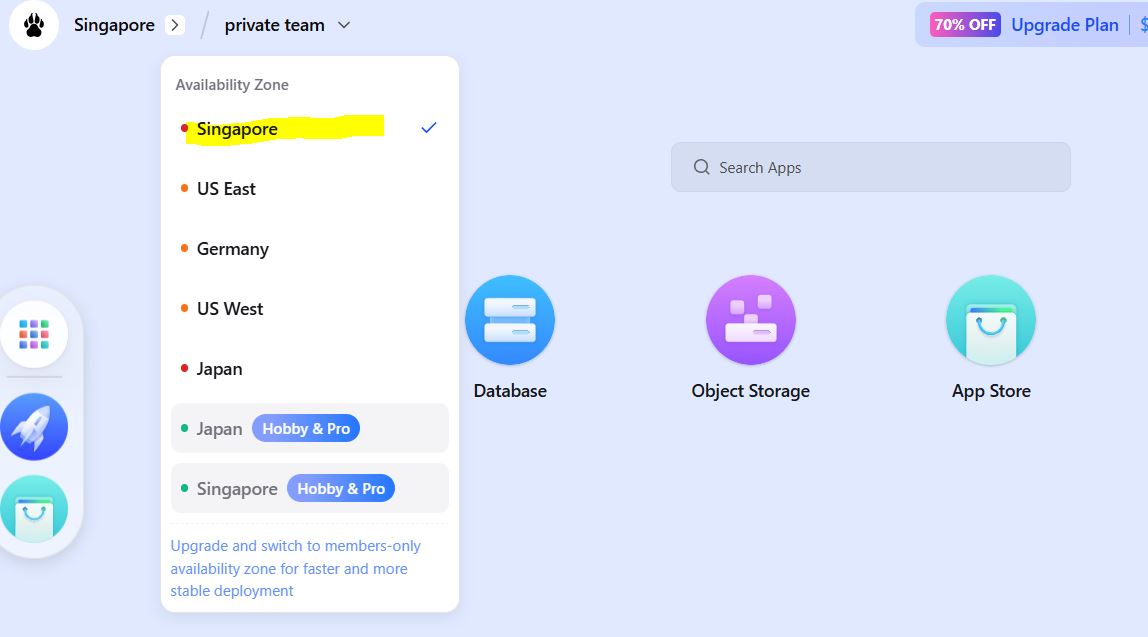
2.Open the APP Launchpad, go to Application, and click ‘Create app’
Open APP Launchpad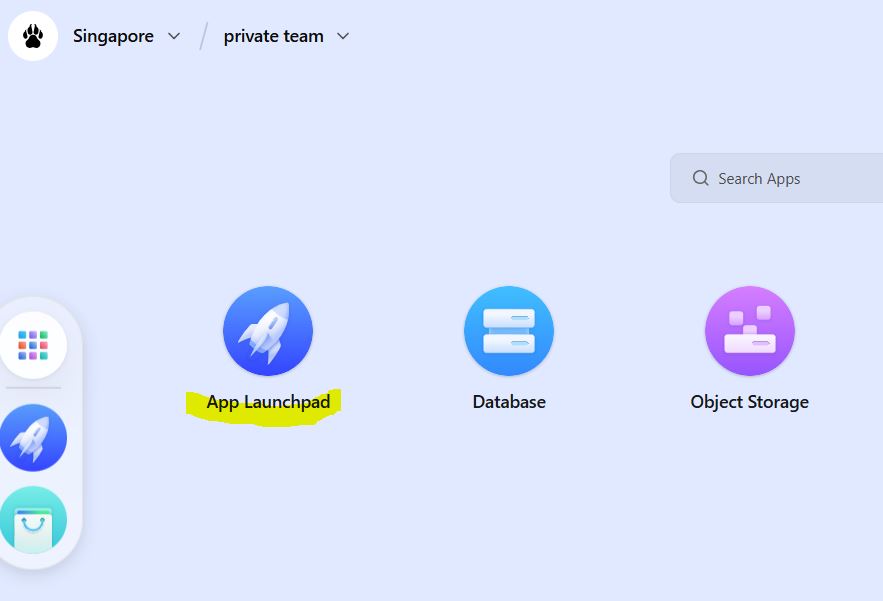
Go to Application and click Create app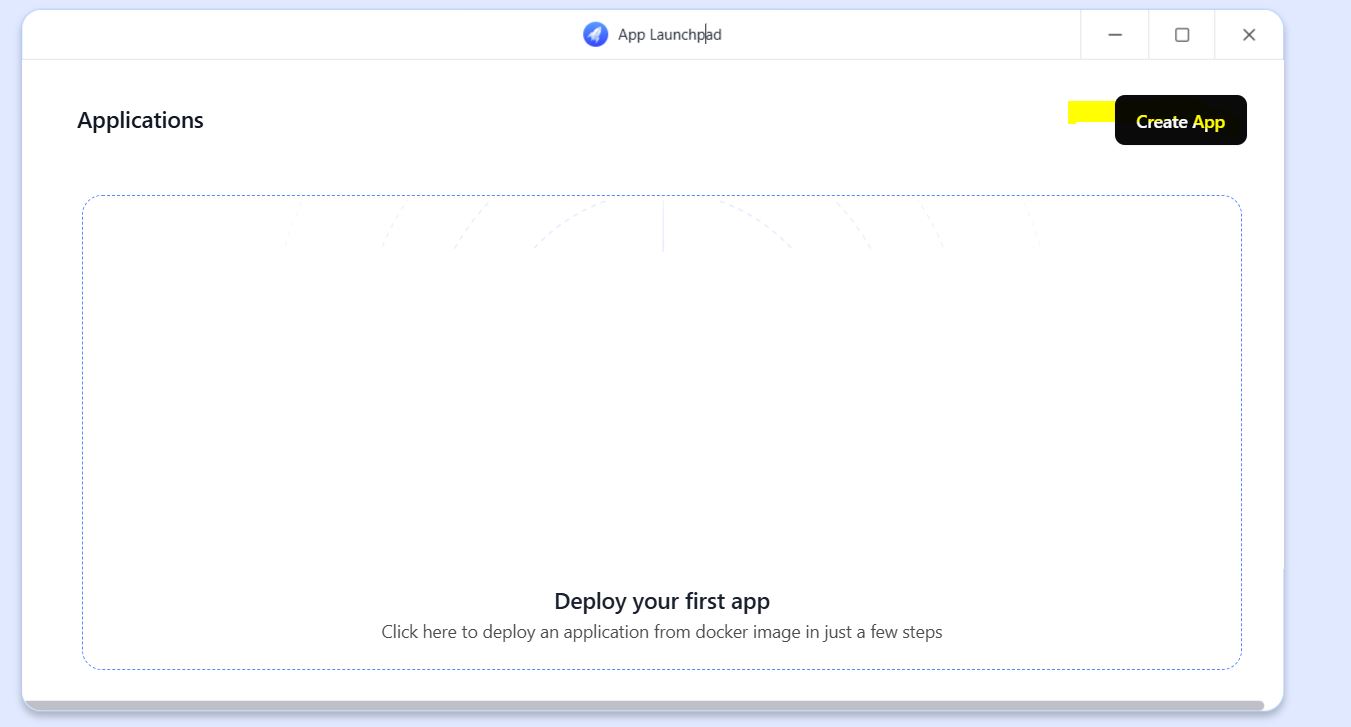
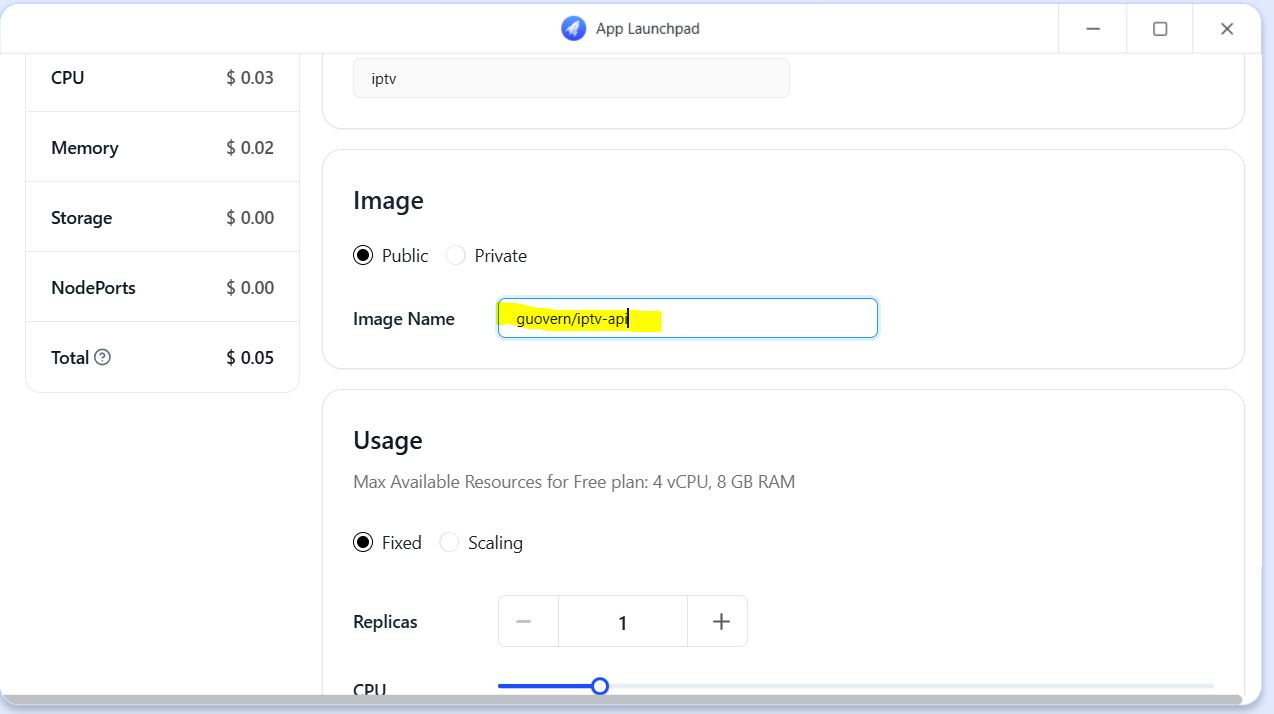
3.You can fill in any name, I changed it to iptv, for Image Name enter guovern/iptv-api
You can fill in any name, I changed it to iptv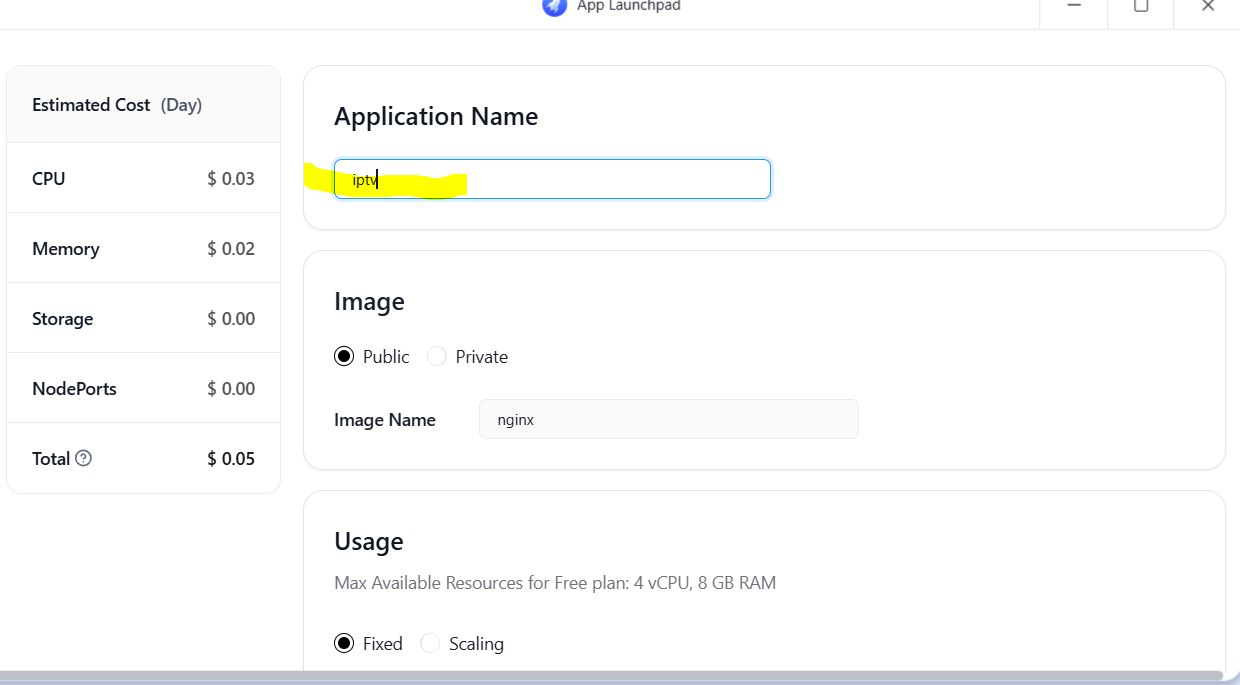
Enter ‘Image Name’ guovern/iptv-api
1 | |
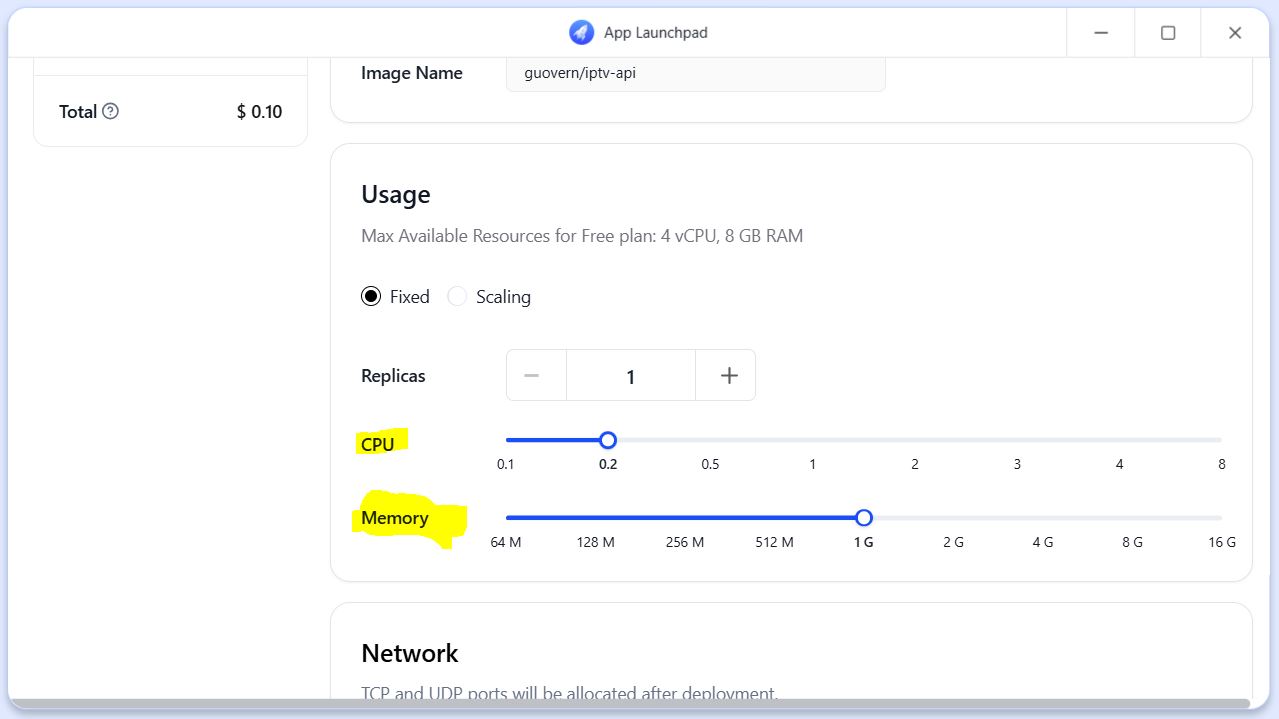
4.CPU set to 0.2, Memory set to 1G
5.Scroll down to Loc Storage, click ‘add’ on the right, and add the following two directories: /iptv-api/config /iptv-api/output
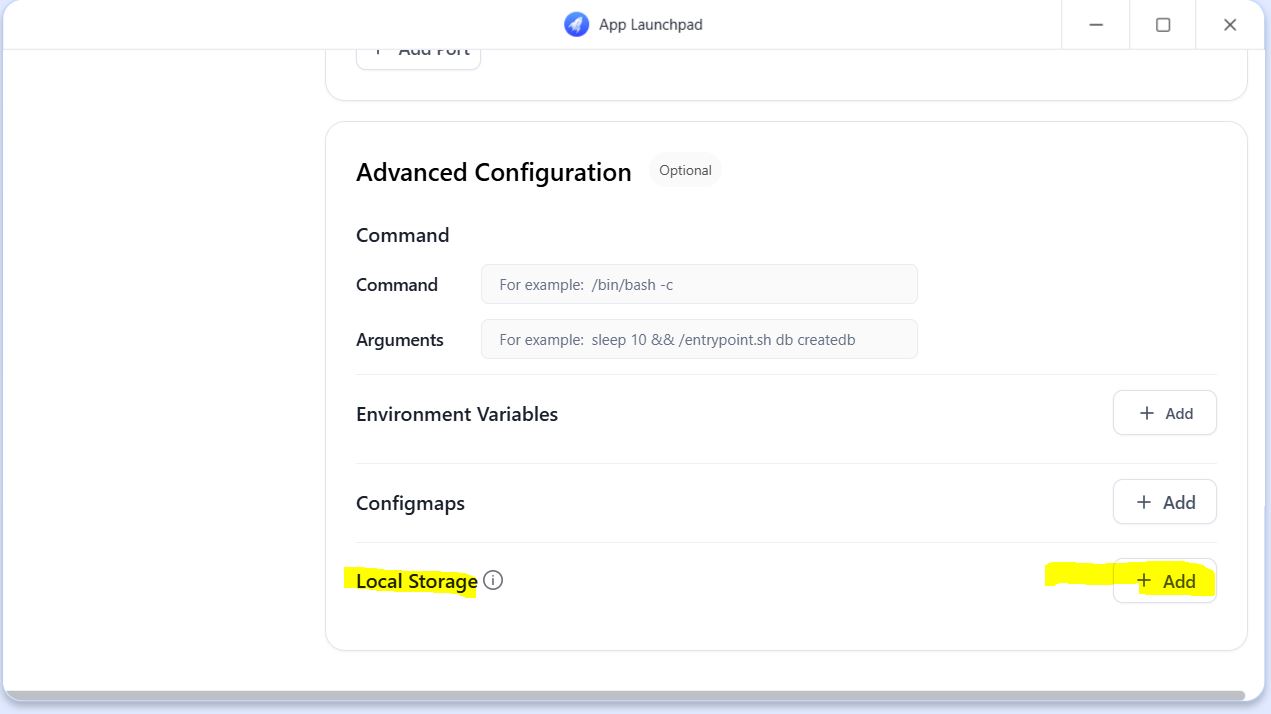
Add directories
1 | |
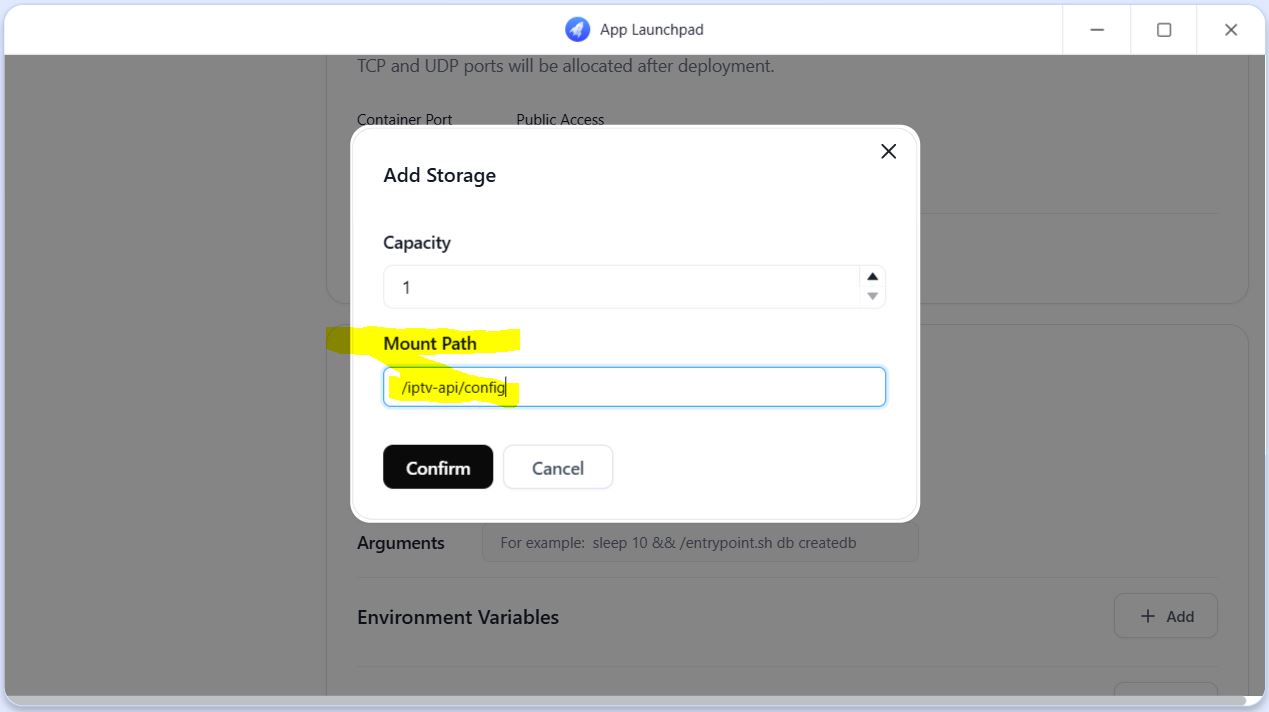
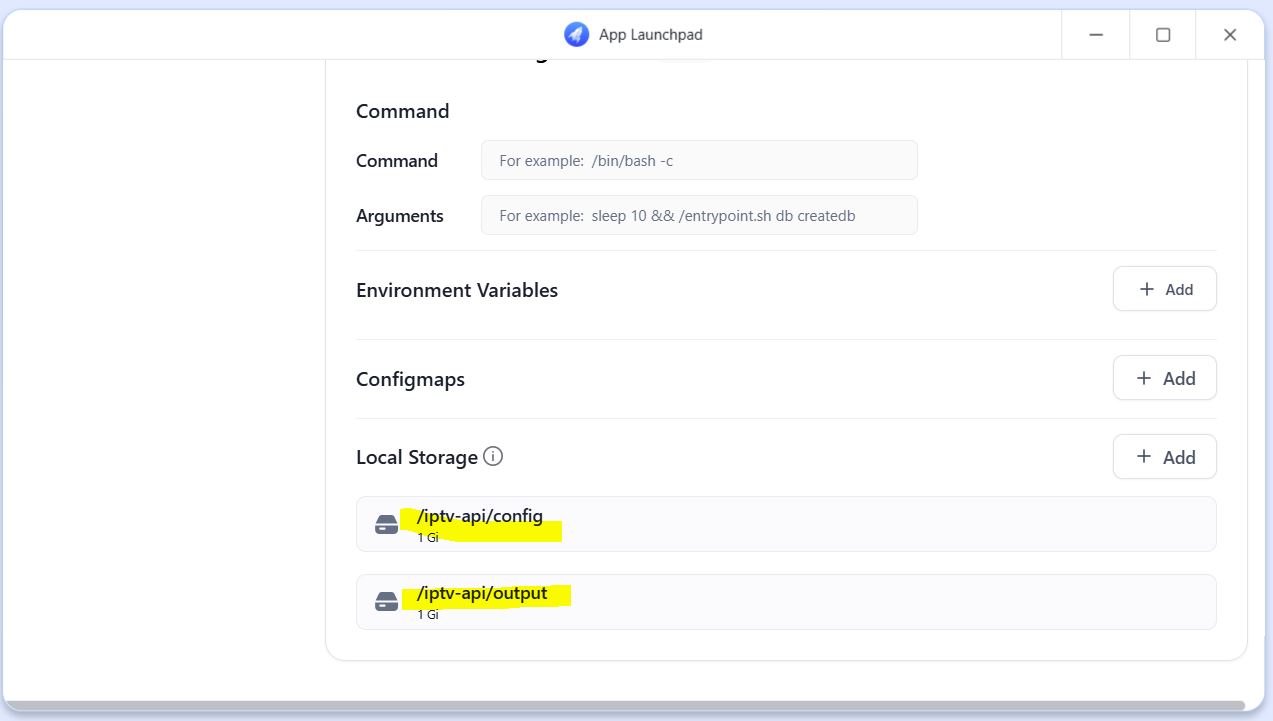
6.Click ‘Deploy Application’ in the upper right corner and wait for the service to start
Click ‘Deploy Application’ in the upper right corner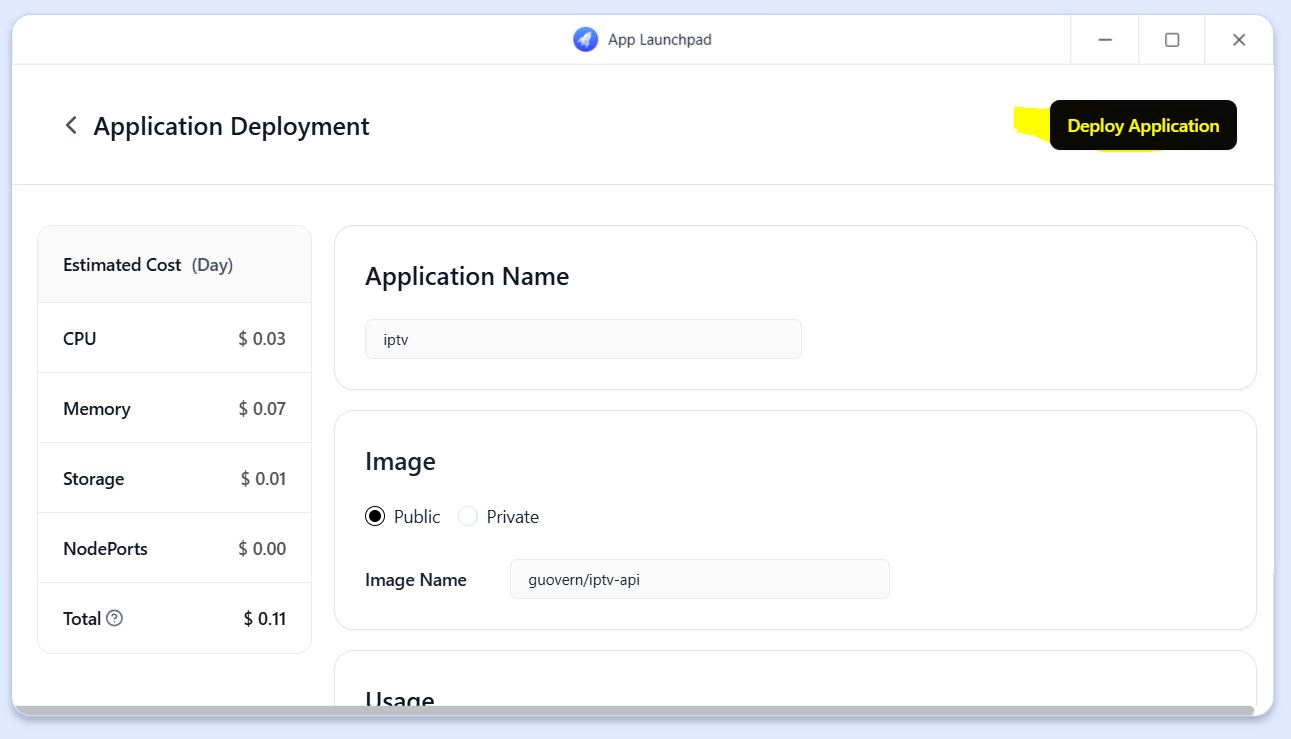
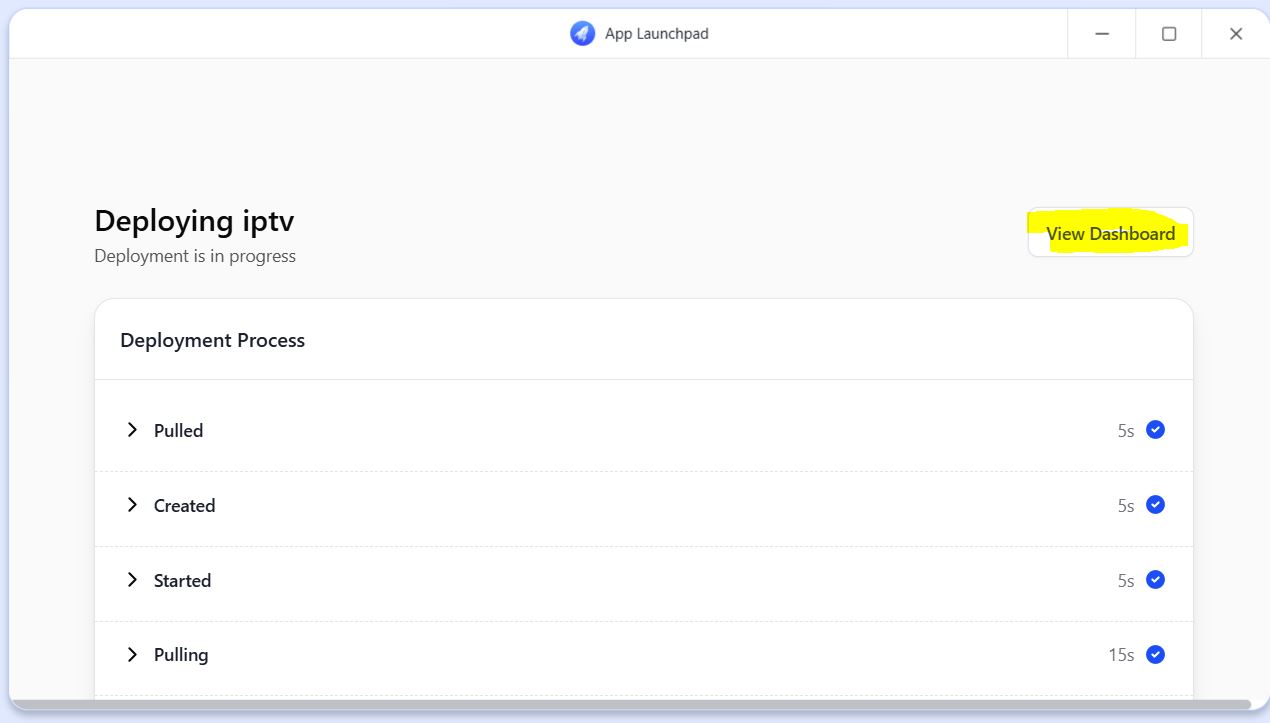
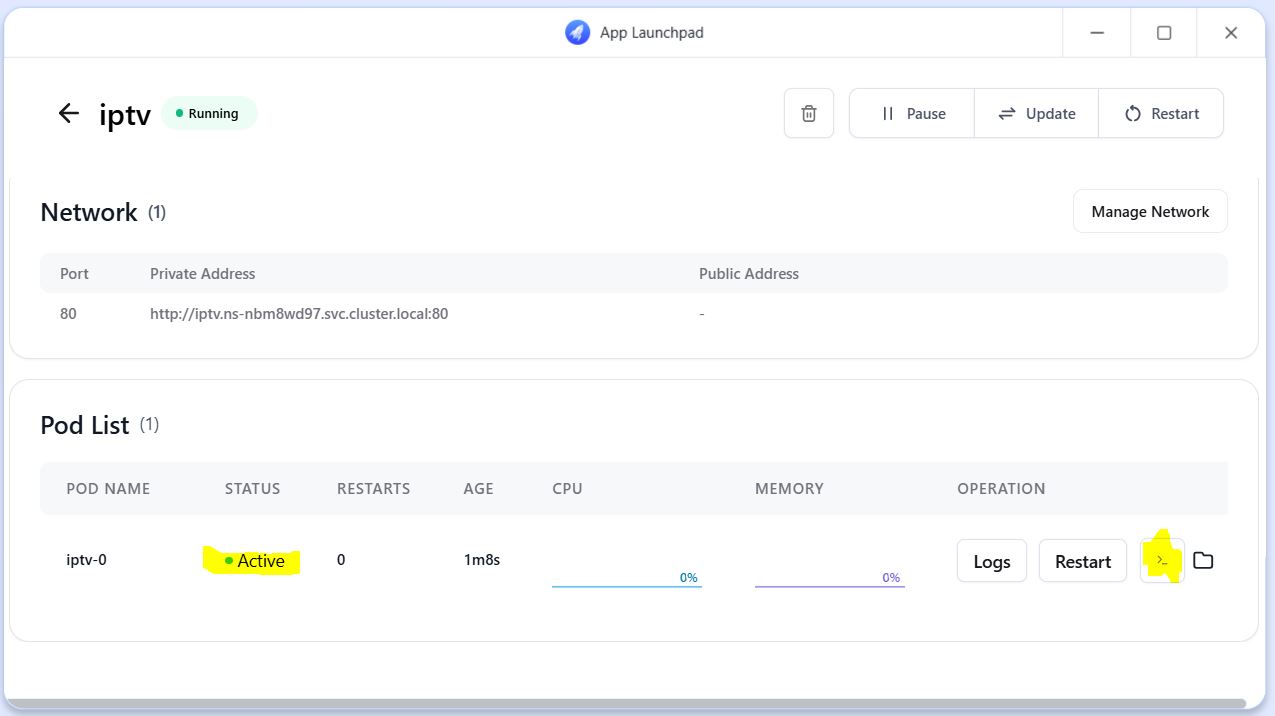
7.When the Status in the Pod list is active, click the >_ button behind Restart,
8.Go to Terminal, you may need to wait for a while. When /iptv-api# appears in the Terminal, copy the following content:
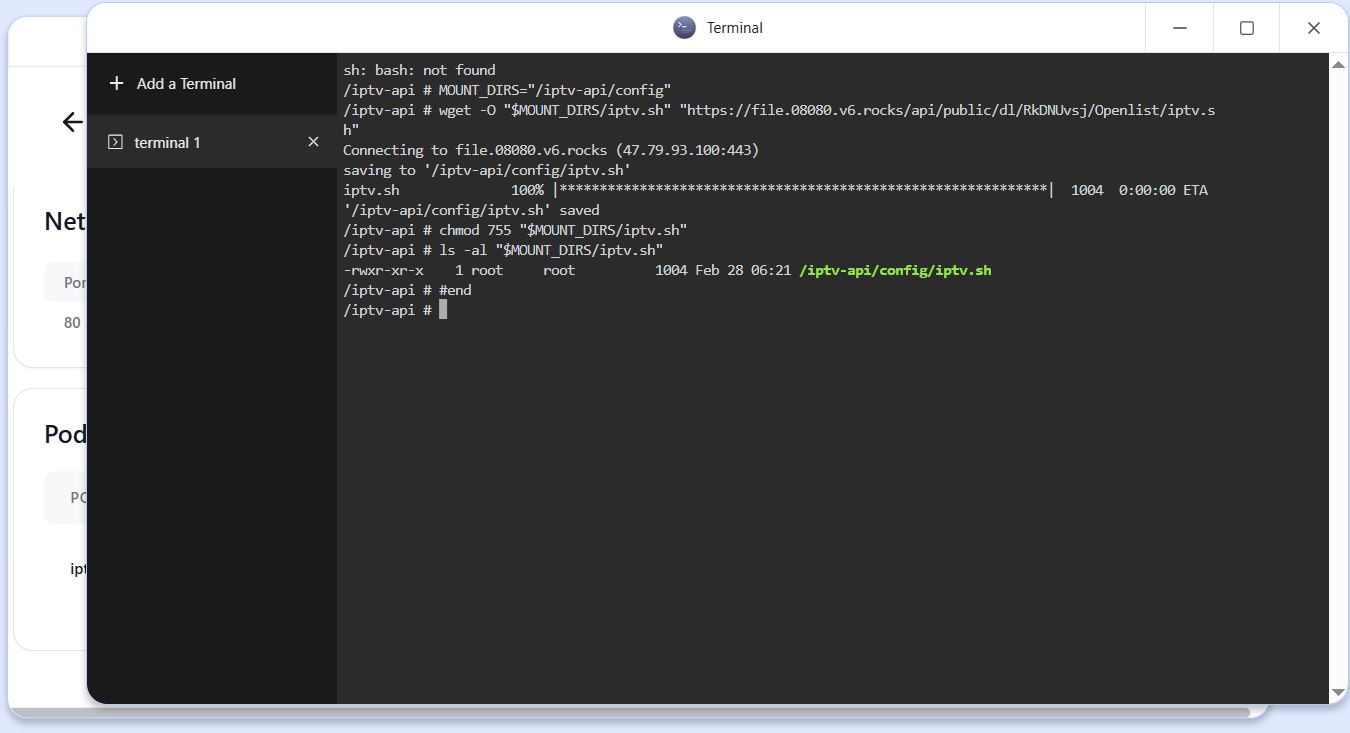
1 | |
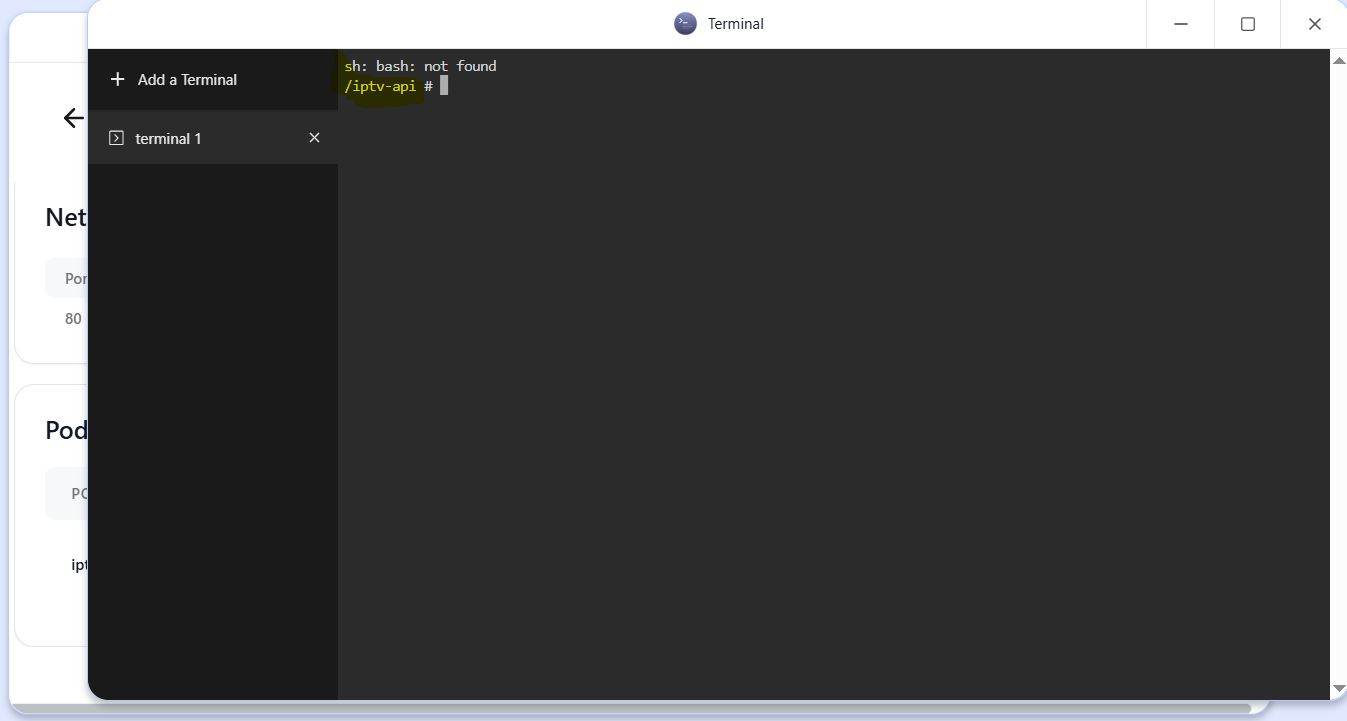
Paste it after /iptv-api# and press ENTER
9.Click the update in the top right corner, enter Update Application, and fill in the Command /bin/sh -c “/iptv-api/config/iptv.sh
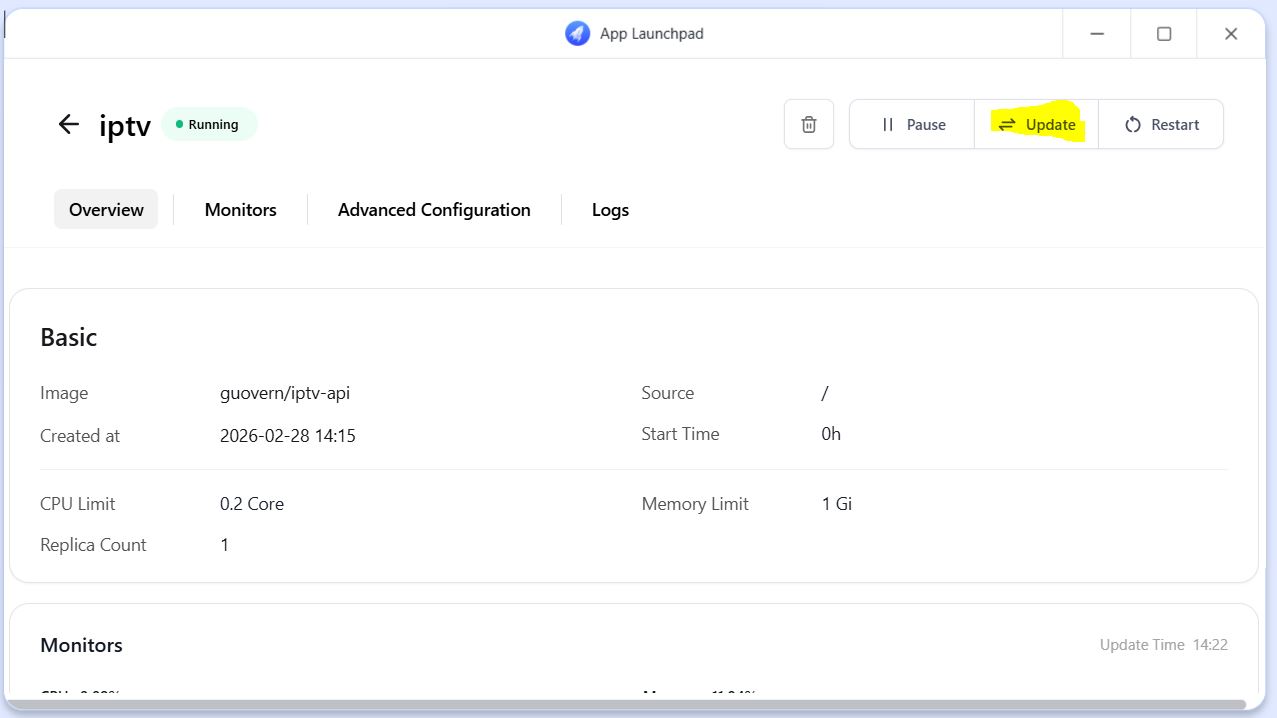
1 | |
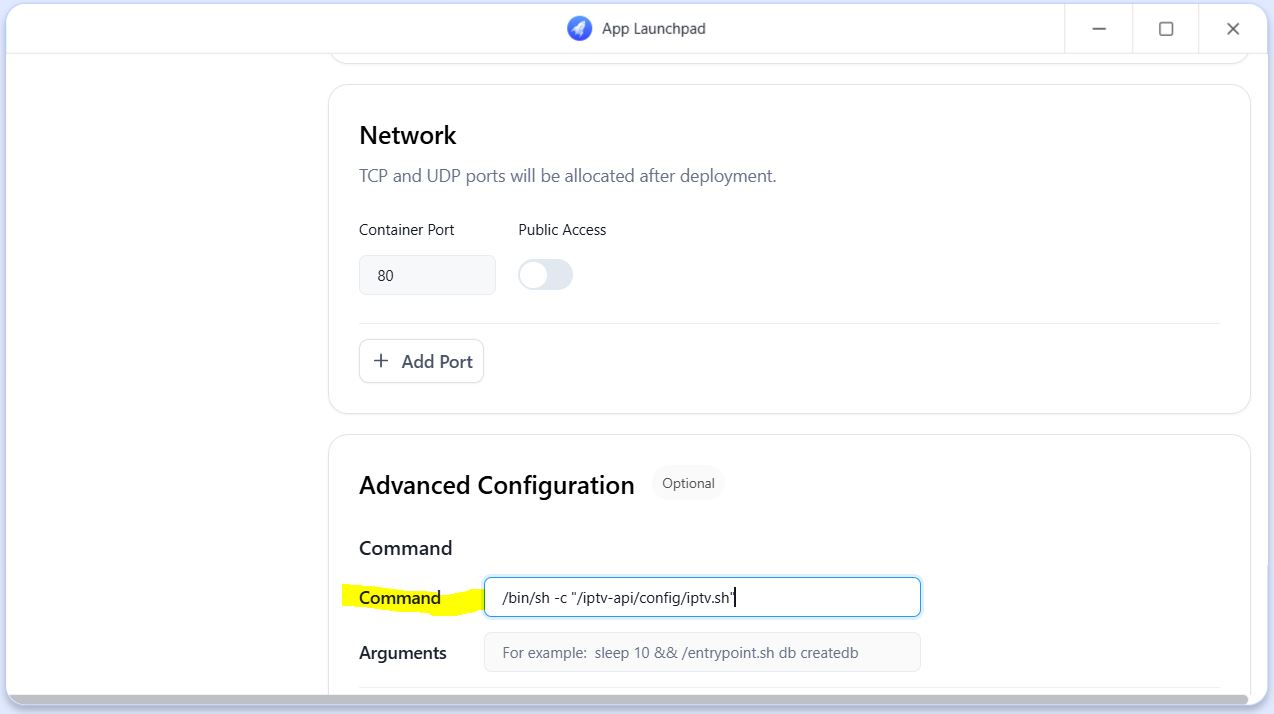
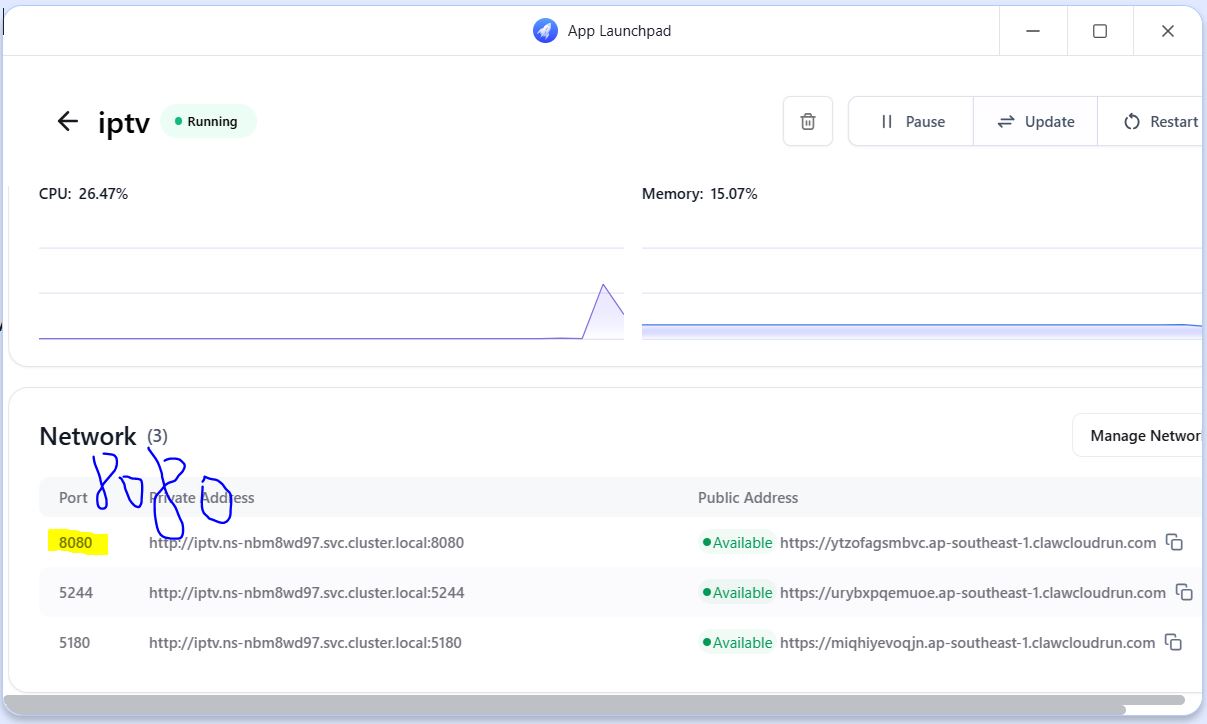
10.In Network, click Add port and add ports 5244 and 8000(In the video, 8000 changed to 8080).
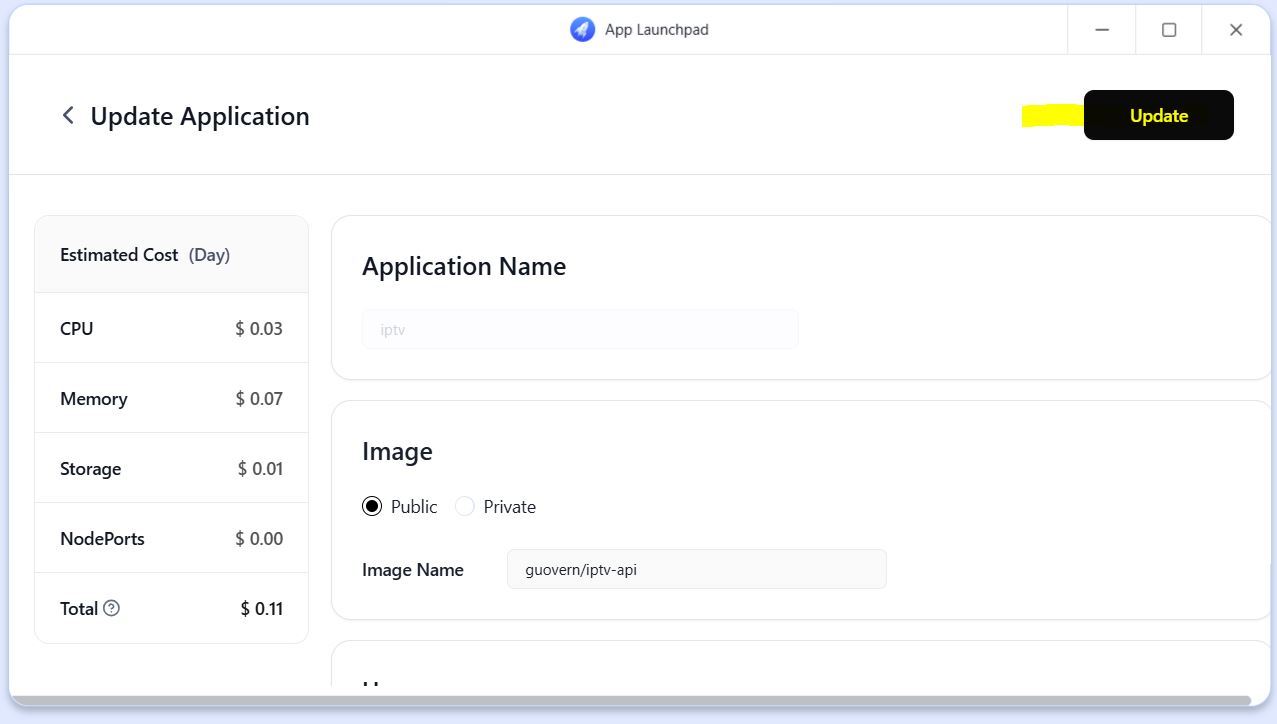
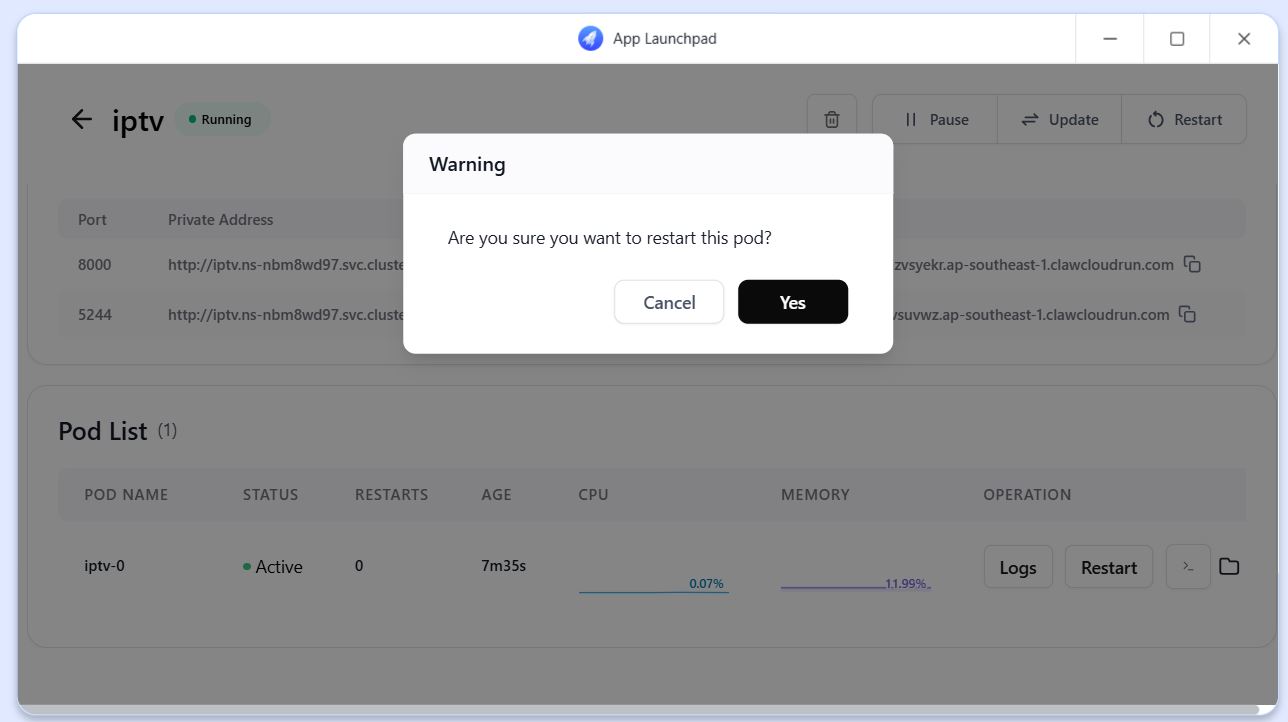
11.After completion, click ‘update’ in the top right corner, confirm, and wait for the restart and deployment.
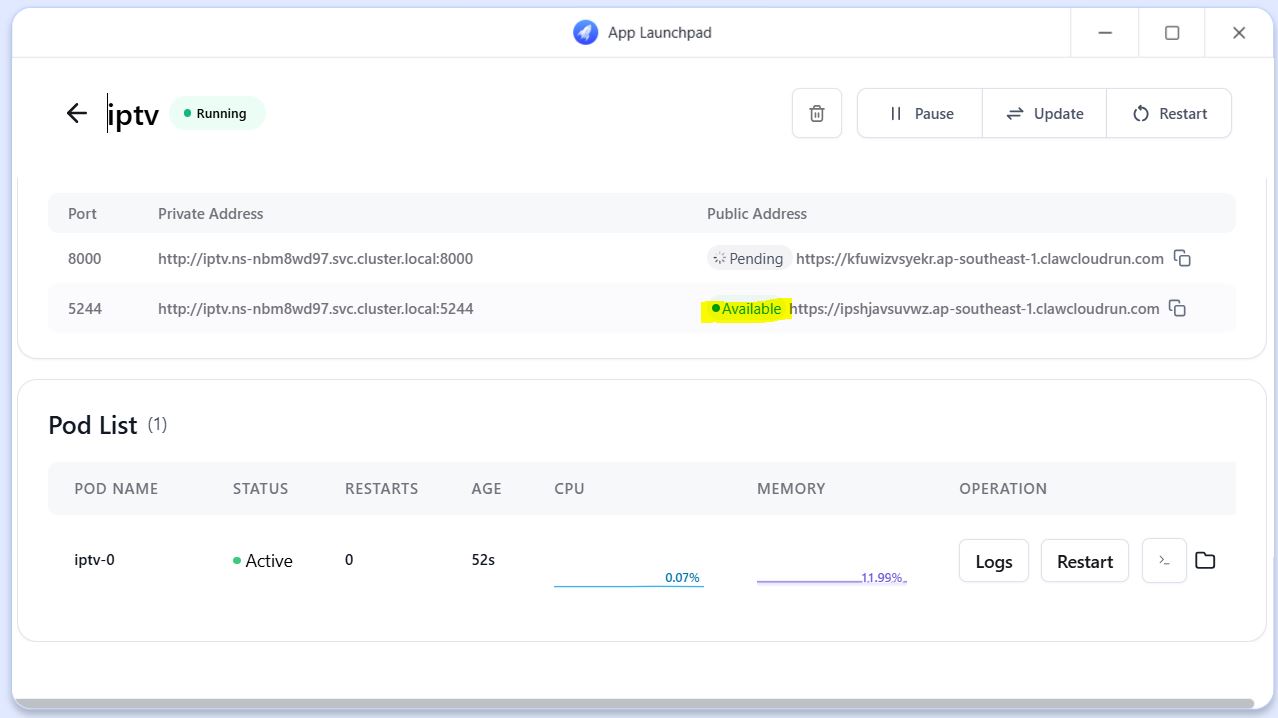
12.Wait for the domain to complete, then you can click to enter OpenList
1 | |
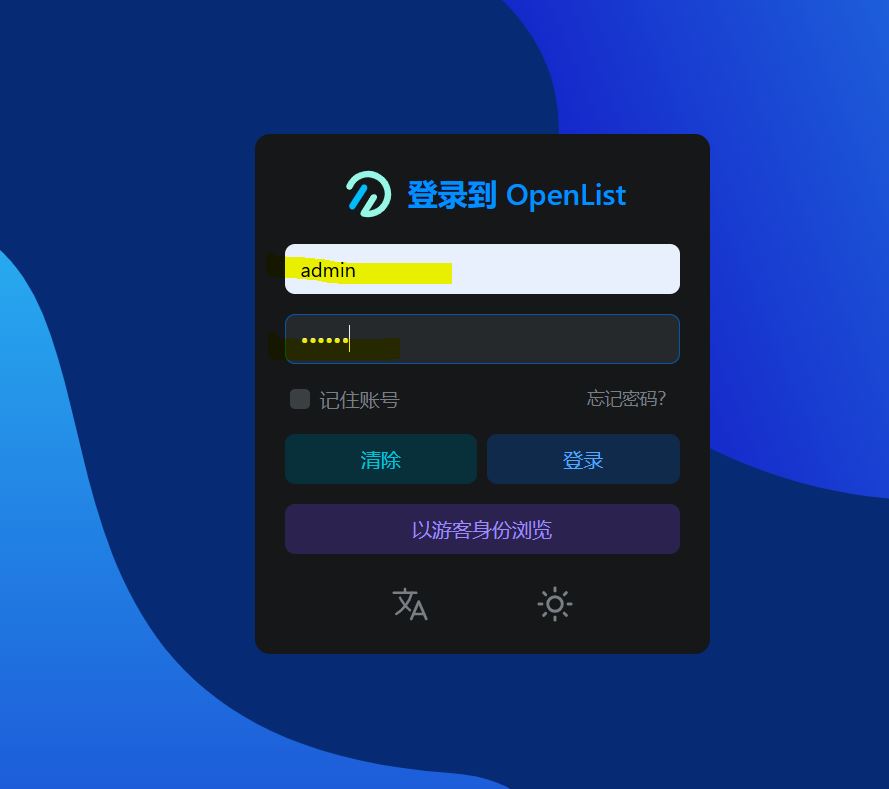
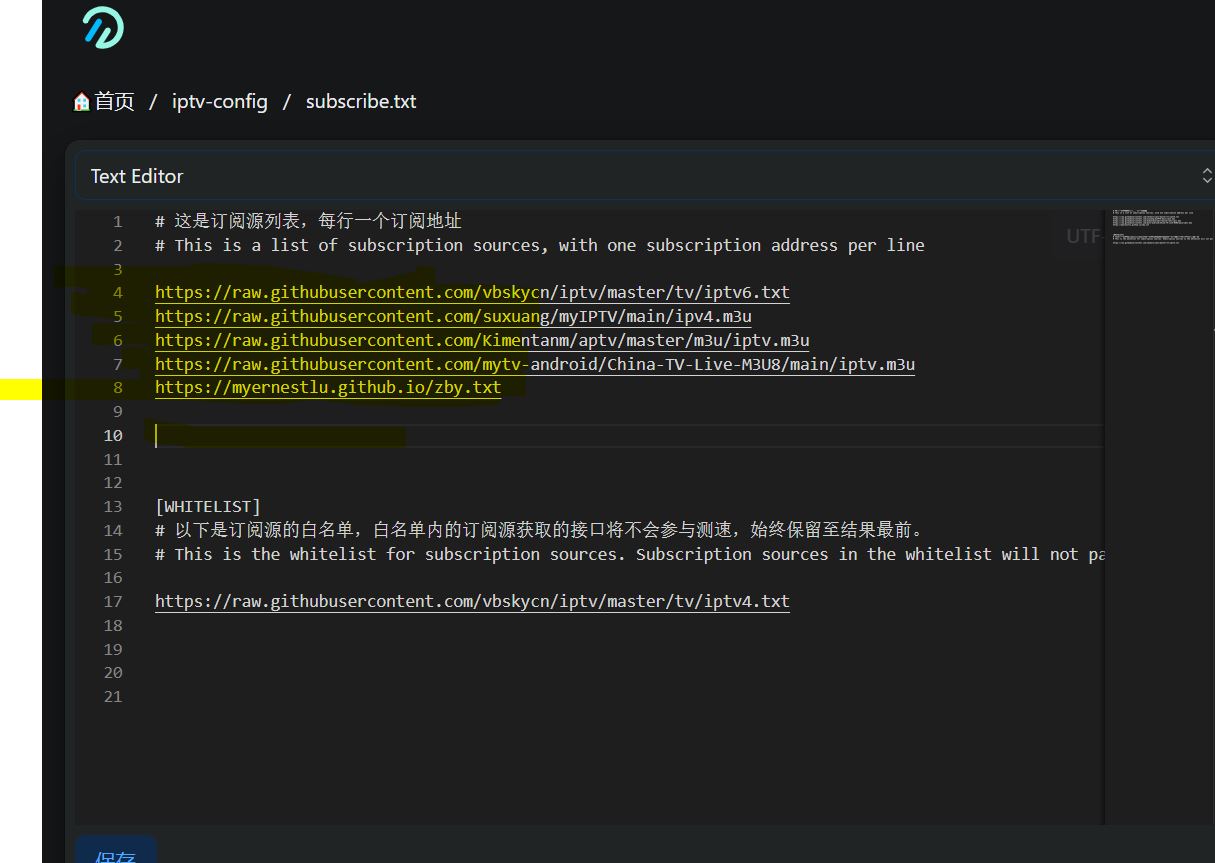
13.Log in to iptv-config, you need to modify the demo.txt and subscribe.txt files, you can also download mine
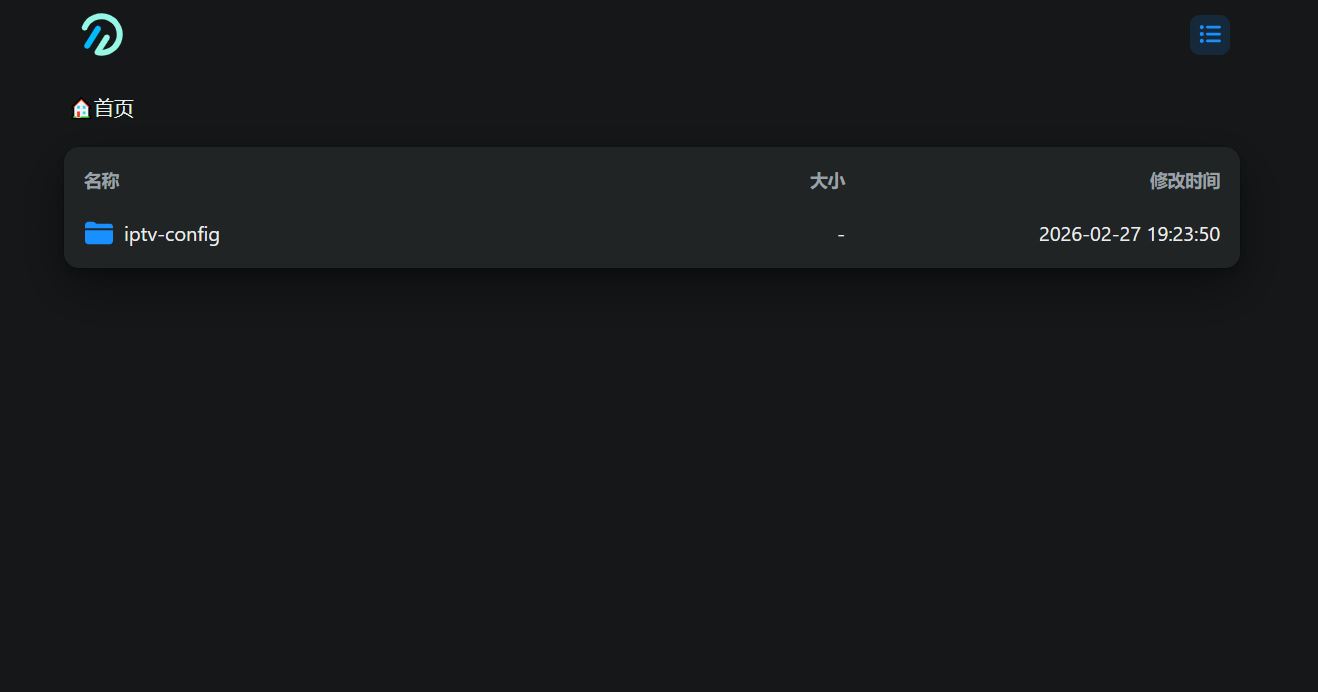
1 | |
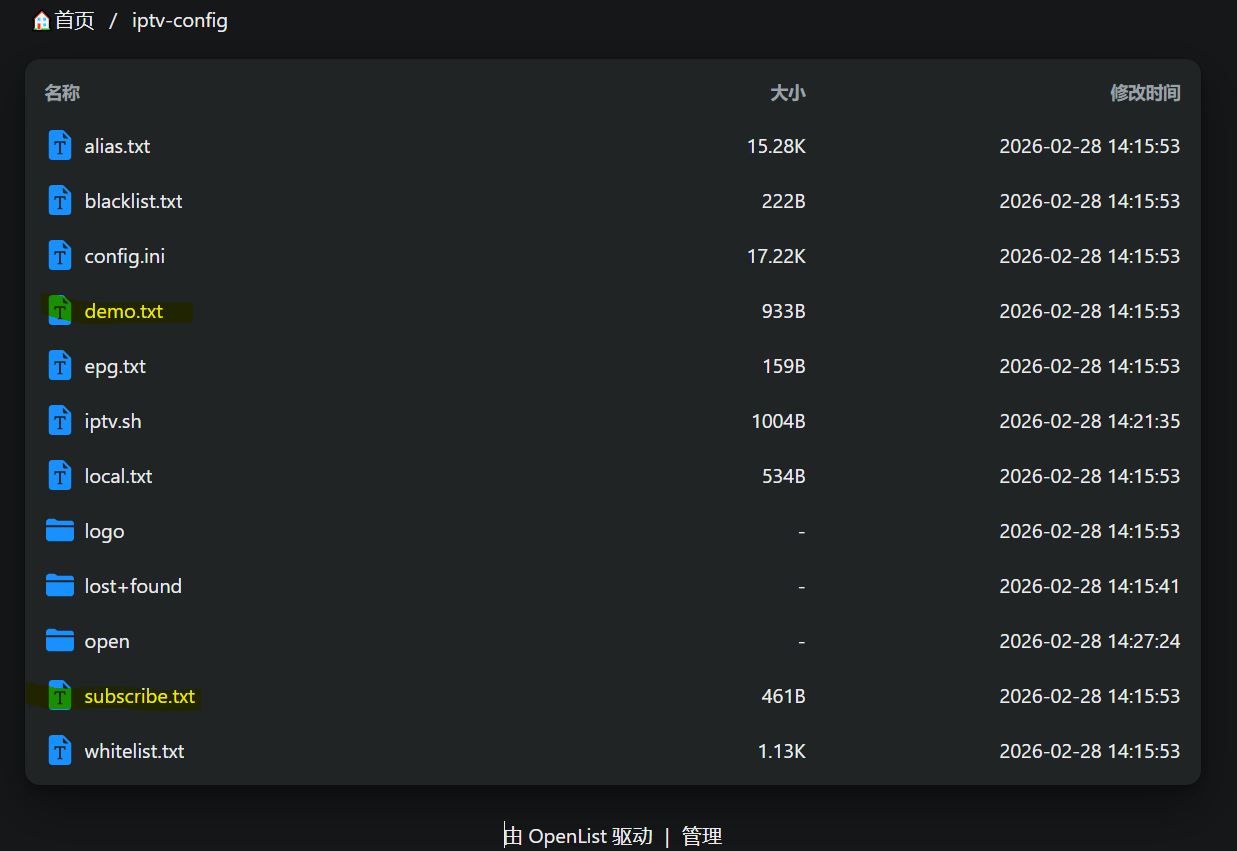
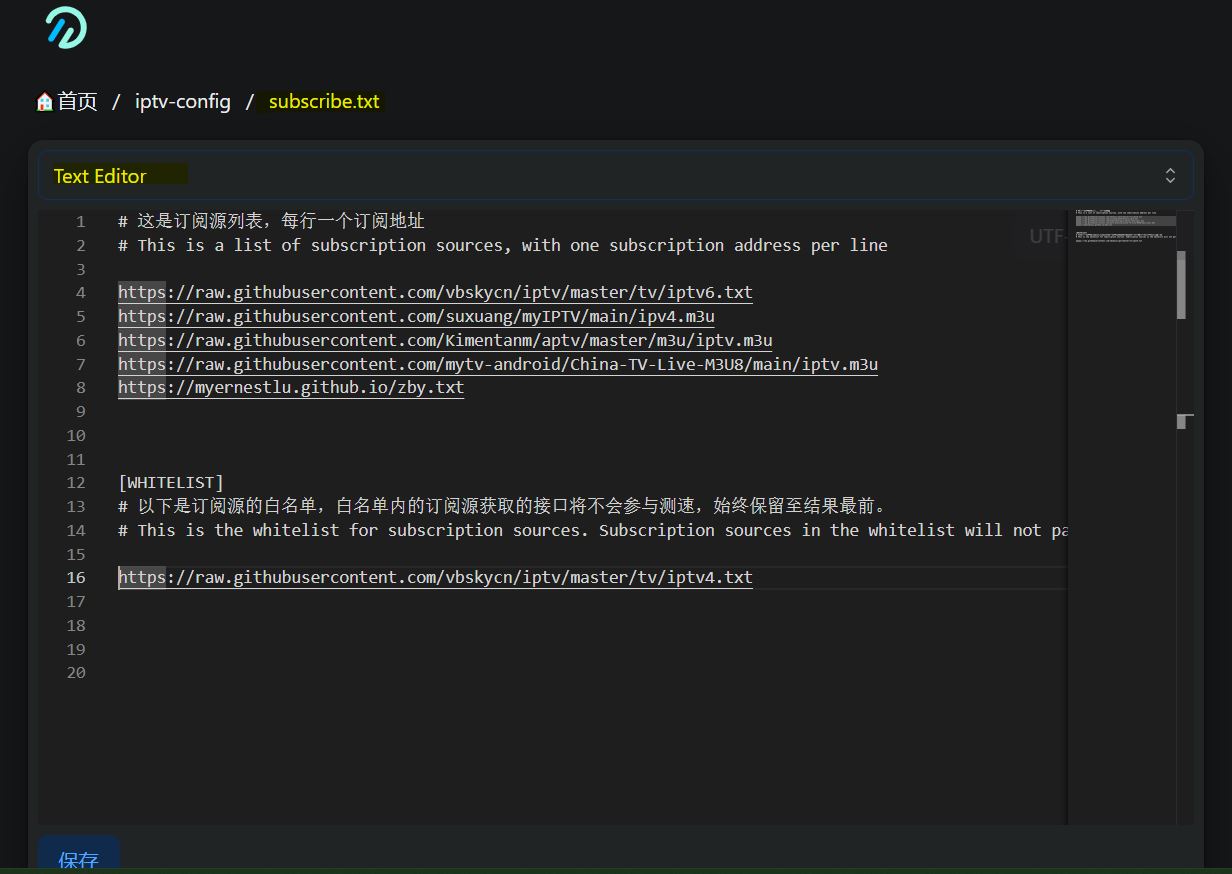
14.Restart the container after modification, wait for the live stream source test to complete, it takes a little time, then you can access it directly.
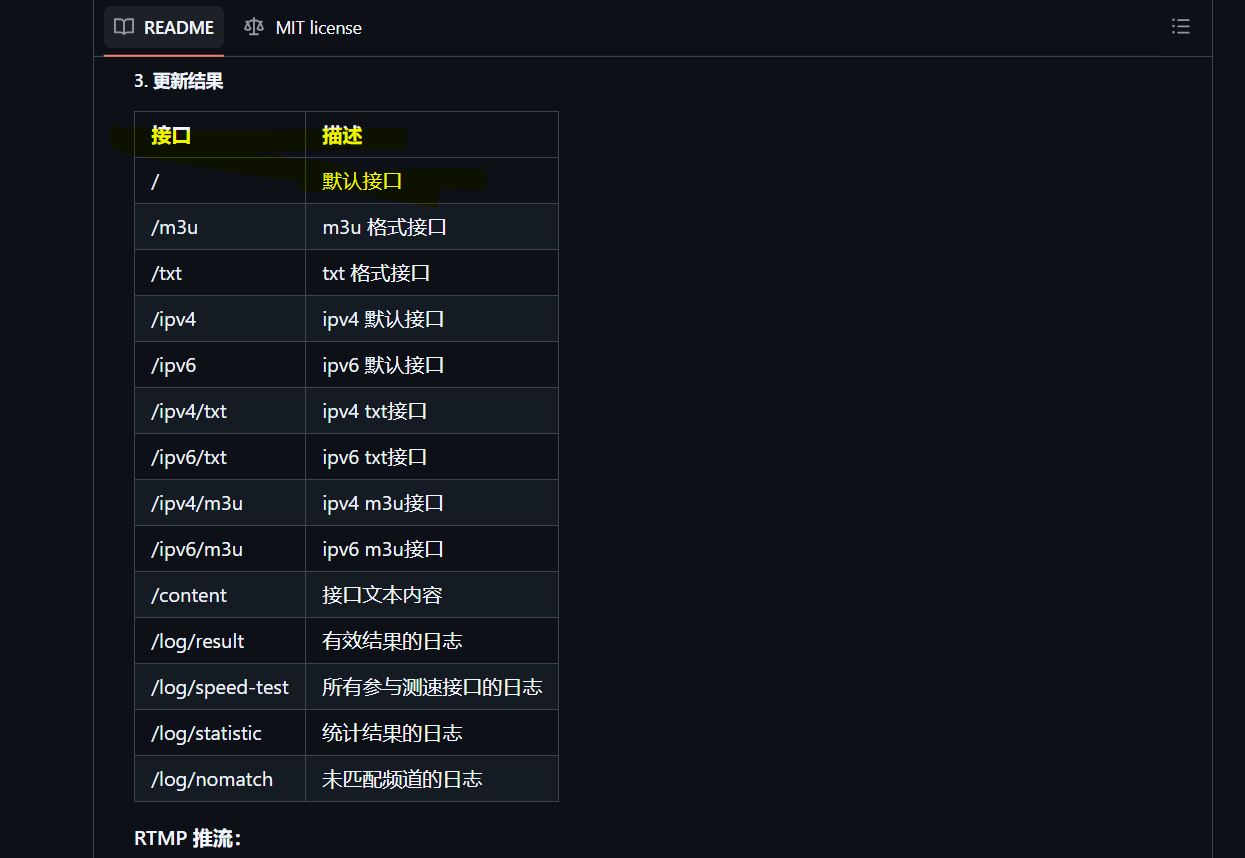
Specific format access:
1 | |
15.You can collect live streaming sources yourself and put them into the subscribe.txt file
16.On-demand sources can be set up with CMS10, KatelyaTV, etc. If interested, you can refer to the links below:
1 | |
1 | |
17.Thank you for watching!!
Enjoy backgroud song
Clawcloud sets up an IPTV API with openlist
https://blog.08080.v6.rocks/2026/02/28/26.02Clawcloud_setup_IPTV_API_with_openlist.en/